Install Multiple Facebook Pixels on Shopify in 5 Minutes (2026 Guide)
Integrating multiple Facebook pixels into a Shopify store enhances tracking for various marketing campaigns, audience behaviors, and conversions. Facebook pixels are essential for analyzing ad effectiveness and understanding customer interactions. By segmenting pixel data, store owners can optimize ad spend and drive sales growth. Shopify supports pixel integration through native tools or manual code insertion, providing flexibility in managing user actions. Proper pixel management improves ad targeting and overall e-commerce performance. Utilizing multiple pixels allows for granular data collection, better retargeting, and audience segmentation, ultimately boosting ad performance and conversion rates.
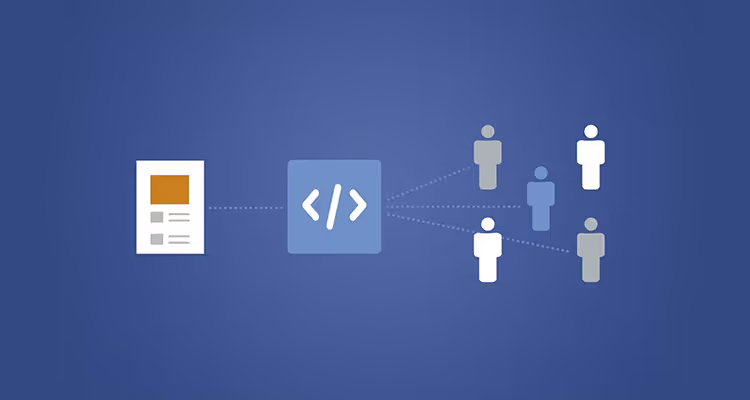
Multiple Facebook Pixels on Shopify: How to Install Them (2026)
Running multiple Facebook (Meta) ad accounts, agencies, brands, or tracking setups on one Shopify store is common in 2026. What’s not common is doing it correctly.
Many Shopify merchants install multiple Facebook pixels without realizing they’re duplicating events, breaking attribution, or feeding Meta conflicting data. The result is inflated conversion counts, unstable ROAS, and ads that stop scaling for no obvious reason.
This guide explains when using multiple Facebook pixels on Shopify actually makes sense, how to install them safely, and how to avoid the most common mistakes that hurt performance.
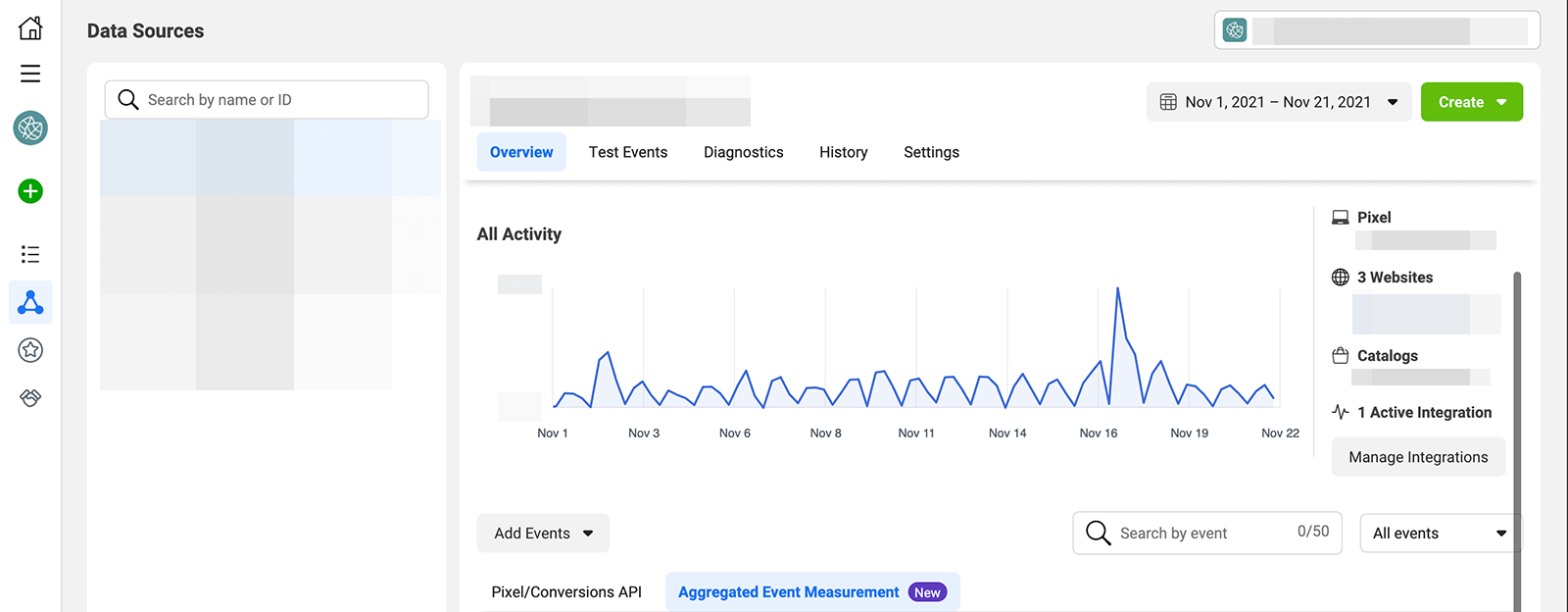
What a Facebook (Meta) Pixel Actually Does
A Facebook pixel, now officially part of Meta’s tracking stack, is a small piece of code that records user actions on your website and sends them to Meta.
It tracks events such as page views, product views, add-to-cart actions, checkouts, and purchases. Meta uses this data to measure ad performance, optimize delivery, and build retargeting and lookalike audiences.
On Shopify, pixel data is one of the most important inputs for ad optimization. If that data is incomplete or duplicated, Meta’s algorithm makes worse decisions.
When Using Multiple Facebook Pixels Makes Sense
Using multiple pixels is not inherently wrong. It’s often required in real-world scenarios.
Common legitimate reasons include working with multiple agencies, running ads for different brands from the same Shopify store, separating prospecting and retargeting strategies, or sharing conversion data with partners or affiliates.
Problems arise when multiple pixels track the same events in the same way without coordination.
How Shopify Handles Facebook Pixel Integration
Shopify offers a native integration with Facebook and Instagram through the Meta sales channel. This method is the safest way to install a primary pixel, because Shopify manages event firing, deduplication, and ongoing updates.
However, Shopify only supports one primary pixel through the native integration. Any additional pixels must be added manually or through third-party tools.
This is where most setups start to break.
Installing a Single Facebook Pixel on Shopify (The Correct Baseline)
Before adding multiple pixels, your primary pixel must be set up cleanly.
Inside Shopify, go to your admin panel and open Settings, then Apps and sales channels. Select Facebook & Instagram, open the sales channel, and navigate to data sharing settings. From there, connect or create a Meta pixel.
Once connected, Shopify automatically tracks standard ecommerce events such as product views, add to cart, initiate checkout, and purchase.
You should always verify this setup inside Meta Events Manager before adding anything else.
How to Add Multiple Facebook Pixels to Shopify
Method 1: Using a Third-Party Tracking Tool (Recommended)
The cleanest way to manage multiple Facebook pixels is through a dedicated tracking platform like wetracked.io.
Instead of injecting multiple browser scripts, wetracked.io captures conversions server-side and sends the same accurate events to multiple Meta pixels without duplication or conflicts. This avoids performance issues, reduces load time impact, and ensures consistent attribution across ad accounts.
This approach is especially useful for Shopify stores running ads on multiple platforms or sharing data across teams.
Method 2: Manual Installation via Shopify Theme Code
Manual installation gives full control, but also introduces the most risk.
To do this, you edit your Shopify theme code and insert additional Meta Pixel base code snippets inside the <head> section of your theme.liquid file. Each snippet uses a different pixel ID.
While this works technically, it creates several challenges. All pixels fire the same events by default. Without careful conditional logic, every purchase is sent to every pixel, which often leads to inflated or misleading data.
Manual setups also increase the chance of script conflicts, slower page loads, and broken tracking after theme updates.
Method 3: Google Tag Manager
Some merchants use Google Tag Manager to manage multiple Facebook pixels.
This allows you to control which events fire for which pixel and under what conditions. While more flexible than direct theme edits, GTM setups are still browser-dependent unless paired with server-side tagging.
If the browser blocks the event, the pixel never fires.
The Biggest Mistake: Duplicate Purchase Events
The most common and damaging mistake with multiple Facebook pixels is duplicate purchase tracking.
If two or three pixels all fire a Purchase event for the same order, Meta may deduplicate incorrectly or discard the data entirely. In some cases, Ads Manager will show inflated revenue that doesn’t match Shopify at all.
This directly impacts optimization. Meta doesn’t know which pixel represents the real source of truth.
Why iOS, Ad Blockers, and Consent Make This Harder in 2026
Even a perfectly installed multi-pixel setup still relies on the browser unless you move tracking server-side.
In 2026, many users block tracking or deny consent. When that happens, browser pixels simply don’t fire. Adding more pixels doesn’t solve this. It multiplies the same blind spot.
That’s why many Shopify stores see massive gaps between Shopify revenue and Meta-reported revenue, even with multiple pixels installed.
A Better Way: Server-Side, First-Party Tracking
Instead of installing more browser pixels, modern Shopify stores send conversion data directly from the backend.
With server-side tracking, the purchase event originates from Shopify itself, not the thank-you page. That event can then be pushed to multiple Meta pixels safely, accurately, and without duplication.
This is how platforms like wetracked.io handle multi-pixel setups. Conversions are captured once, enriched with first-party data, and distributed cleanly to all connected ad platforms.
According to wetracked.io’s product documentation, this approach significantly improves attribution accuracy and reduces data loss caused by iOS privacy updates and ad blockers .
How to Verify Multiple Facebook Pixels Are Working Correctly
After installation, always verify your setup.
Meta Events Manager should show incoming events without warnings. You should see clear attribution per pixel, not inflated counts. Shopify revenue and Meta revenue should be directionally aligned, not wildly different.
Browser tools like the Meta Pixel Helper can confirm which pixels fire on which pages, but backend verification is even more important.
Best Practices for Using Multiple Facebook Pixels on Shopify
Each pixel should have a clear purpose. One primary pixel should represent the store’s main source of truth. Additional pixels should only receive events if there’s a clear business reason.
Avoid installing multiple browser pixels that all fire identical events. Minimize script bloat to protect site performance. Regularly audit Events Manager for duplicate or dropped events.
Most importantly, treat tracking as infrastructure, not a collection of scripts.
Final Takeaway
Yes, you can install multiple Facebook pixels on Shopify. The real question is whether you’re doing it in a way that helps or hurts your ads.
In 2026, simply adding more pixels does not equal better tracking. Without proper control and server-side data, it often makes attribution worse.
If you need multiple pixels for agencies, brands, or partners, the safest path is a single, backend-driven source of truth that feeds all platforms cleanly. That’s how you keep Meta’s algorithm learning from real revenue and keep your Shopify growth scalable.
Effectively integrating and managing multiple Facebook pixels in a Shopify store is crucial for advanced tracking and personalized marketing strategies. This approach enhances ad targeting, optimizes ad spend, and drives sales growth, making it an invaluable tool for e-commerce success.